Account Creation

|
This page explains how to create an Allure of the Past account and download and install the game client. Please see the Character Creation page if you need help creating your character. |
Accessing Allure of the Past
AKAP is played through a downloadable client. Before beginning your adventure, you’ll need to create an account and install the client on your computer.
- Official Allure of the Past page: https://aurakingdom.io/
Before You Begin
Before downloading the game, check the System Requirements below to ensure that your computer can run AKAP. You will also need enough available storage space and a stable internet connection.
| Component | Minimum | Recommended |
|---|---|---|
| Operating system | Windows 10 or Windows 11, 64-bit | Windows 10 or Windows 11, 64-bit |
| Processor | Intel Pentium 4 2.8 GHz or higher AMD K8 2600+ or higher |
Intel Core 2 Duo 2.66 GHz or higher AMD Athlon 64 X2 6000+ or higher |
| Memory | 8 GB RAM | 16 GB RAM |
| Graphics | NVIDIA GeForce 8400 or higher ATI Radeon X1600 or higher |
NVIDIA GeForce 9500 or higher ATI Radeon HD 4570 or higher |
| Storage | 14 GB available space | 20 GB available space |
Account Registration
When creating an account, you can register directly or continue through one of the supported third-party services.
AKAP currently offers two registration methods:
- Allure of the Past account
- Discord
Standard Account Registration
The following section explains how to register an account directly through Allure of the Past.
| 1. Go to the main website at https://aurakingdom.io/ |  |
| 2. Scroll down to the bottom section, labeled “Download”. Press the Sign Up button. |  |
3. On the sign-in page, select Create an Account. You will be asked to provide:
Enter the required information, complete the security check, and select Create account. |
 |
| 4. After creating the account, you will be prompted to choose a display name. This is used for your account profile and will not determine your character’s in-game name. Enter a display name and confirm your selection to complete registration. |
 |
Installing the Client
The game client can be installed before or after creating an account. Once downloaded, the installer will guide you through the setup process.
- Head back to the official website at https://aurakingdom.io/ and click on the Download button. Once the download is complete, open AuraKingdom_Setup.exe to begin installation.

- Select Next to continue through the setup wizard. You can also choose whether the installer should create a desktop shortcut before continuing.
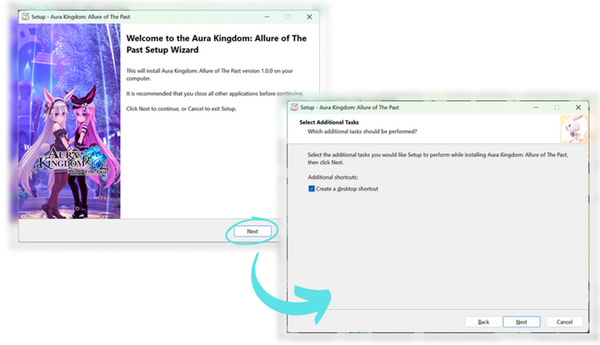
- Review your selected options and select Install. Once installation is complete, you can leave "Launch Aura Kingdom: Allure of the Past" selected and click Finish to open the game immediately. Alternatively, you can leave the checkbox unchecked to finish without launching the game and complete this step at a later point.

- Head back to the official website at https://aurakingdom.io/ and click on the Download button. Once the download is complete, open AuraKingdom_Setup.exe to begin installation.


First Launch and Sign-In
When opened, the launcher will automatically check for and download any available game updates. The time required will depend on the size of the update and your internet connection, a stable connection is recommended.
Once patching is complete, select Start Game. Your default browser will open the Allure of the Past sign-in page. Sign in with your registered account, or create an account if you haven't already done so.
Troubleshooting
If by chance you are having trouble connecting to the game, open the launcher and select Options. From there, switch to a different server and try launching the game again.

With your account registered, the client installed, and all updates complete, it's time to finally start exploring the world of Azuria! The next step is bringing your first Envoy of Gaia to life. Feel free to check out Character Creation to learn about classes, customization and naming, or jump in and start experimenting on your own!